
Discord only lets an app see your calls if you own that app. So Perch uses a Discord app that you create. It is free, it takes about three minutes, and you only do it once. Nothing leaves your computer: Perch talks to the Discord app on your PC and nowhere else.
Step 1: Create your Discord app
Open the Discord Developer Portal and sign in with your normal Discord account.
Click New Application in the top right. Name it anything you like (Perch works), tick the terms box, and click Create.
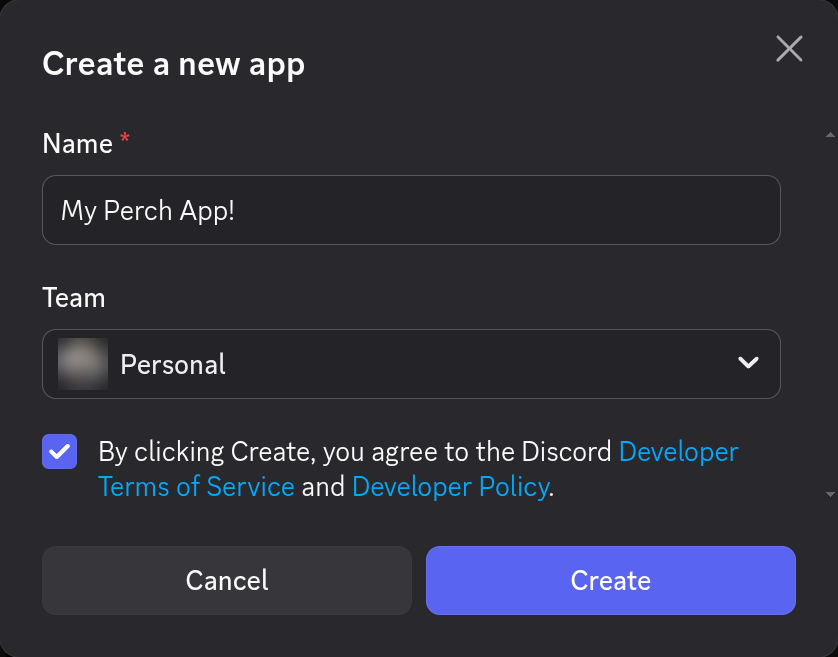
Step 2: Copy the Application ID into Perch
Your new app opens on its General Information page. Find Application ID and click the Copy button under it.
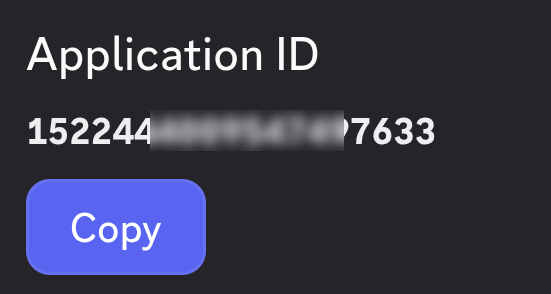
Now open Perch: click the Perch icon in the system tray, click Discord in the left column, and paste the number into the Application ID field. It sits right under step 2 on that page. Press Enter.
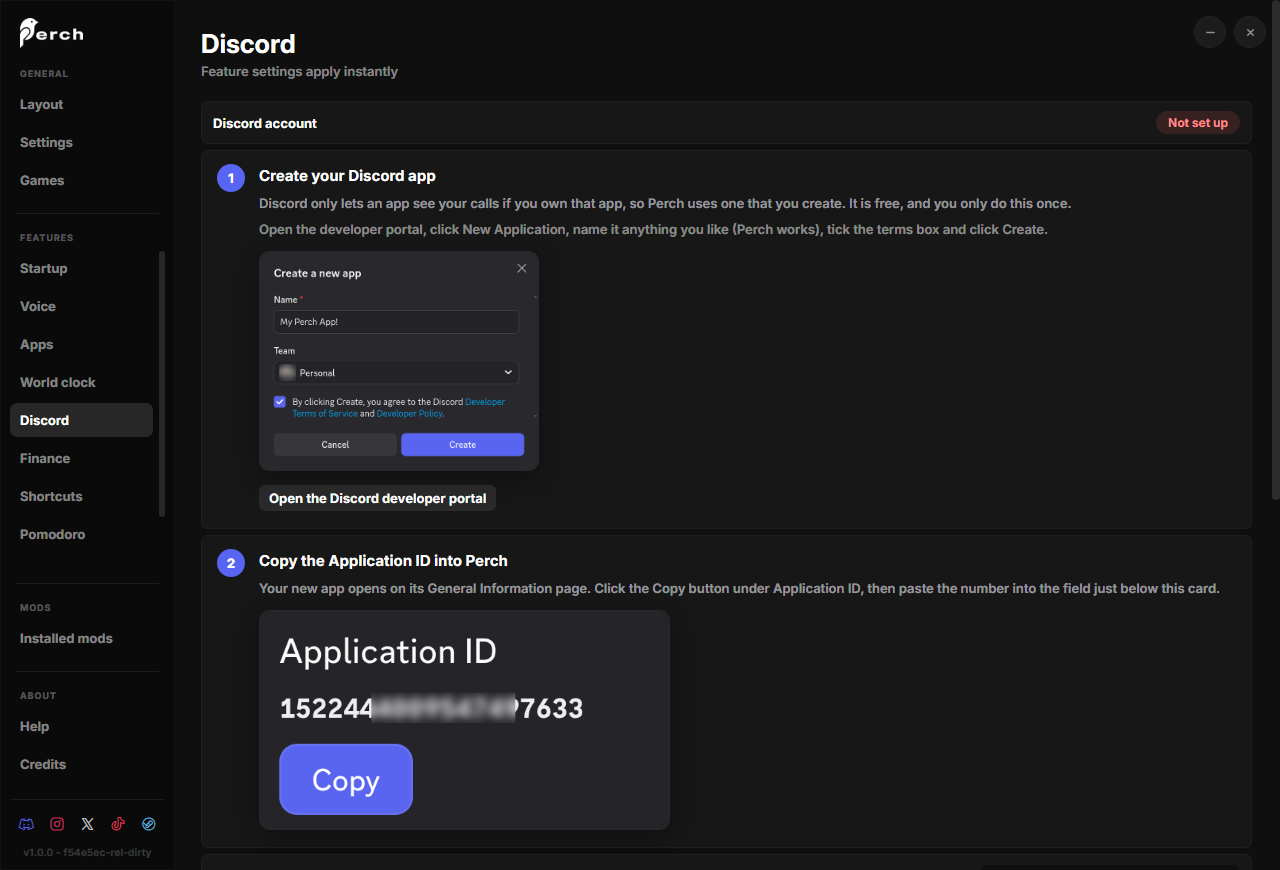
Step 3: Let Perch sign in to your app
Back in the Discord portal, click OAuth2 in the left sidebar. Under Redirects click Add Redirect, paste this address exactly, and click Save Changes:
http://127.0.0.1
On the same OAuth2 page, switch on Public Client and click Save Changes once more. Perch signs in without a password-like secret, and this switch is what allows that.
Step 4: Connect
Make sure the Discord desktop app is open and you are signed in. The browser version of Discord will not work.
In Perch, click Connect. Discord shows an authorization window; click Authorize there. The Discord account row at the top of the page turns green and reads Connected, and the step cards disappear.
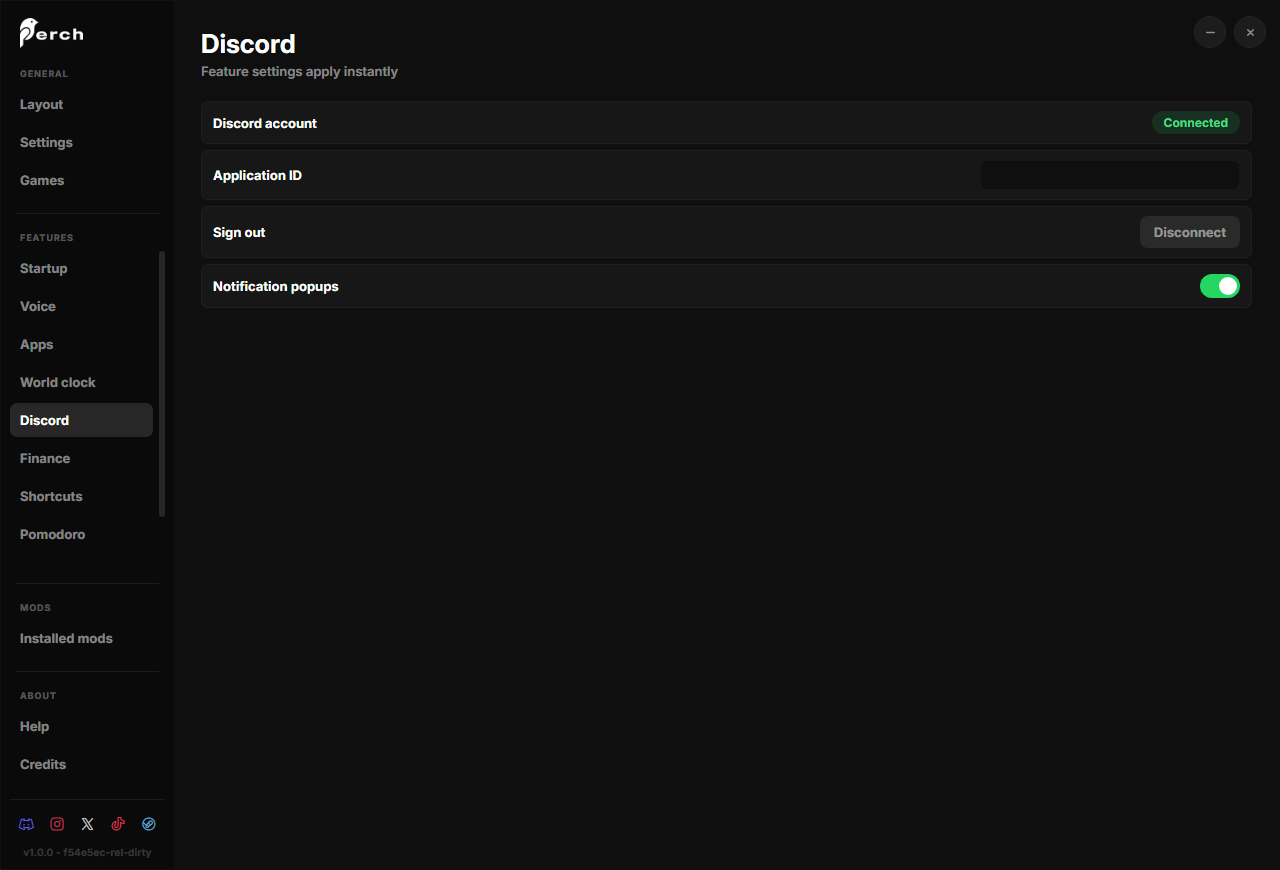
That is all. Perch stays connected across restarts.
Something not working?
Nothing happens when I click Connect
The Discord desktop app has to be running and signed in. Discord in a browser tab does not count. Open the desktop app and click Connect again.
Discord says the redirect is invalid
Open your app’s OAuth2 page in the portal and check the redirect. It must be
exactly http://127.0.0.1 (no s in http, nothing after the last 1), and
you must have clicked Save Changes after adding it.
It says Not authorized
Two common causes. The Public Client switch on the OAuth2 page is off (turn it on and save), or the Application ID belongs to an app you do not own, for example one copied from a friend or a forum. Discord only allows this kind of access to the app’s own owner, so the ID has to come from an app made under your account. Go back to step 1 and make your own; it is free.
It still says Not set up after I paste the ID
The Application ID is a long number: no spaces, no quotes, and not the app’s name. Go back to the app’s General Information page and use the Copy button, then paste again.
It asks me to authorize again
That is normal after a Perch update that changed what it asks Discord for, or after you changed your Application ID. Click Authorize once more.
Want more than the built-in Discord widget? The rest of these docs are about building mods.